
SmartOne is a separate player. Check its official website for current device compatibility and any app fees.

Using MYIPTV Player
1. We will first install the Downloader app
This app will help you sideload IPTV Smarters (because browser downloads are not allowed)
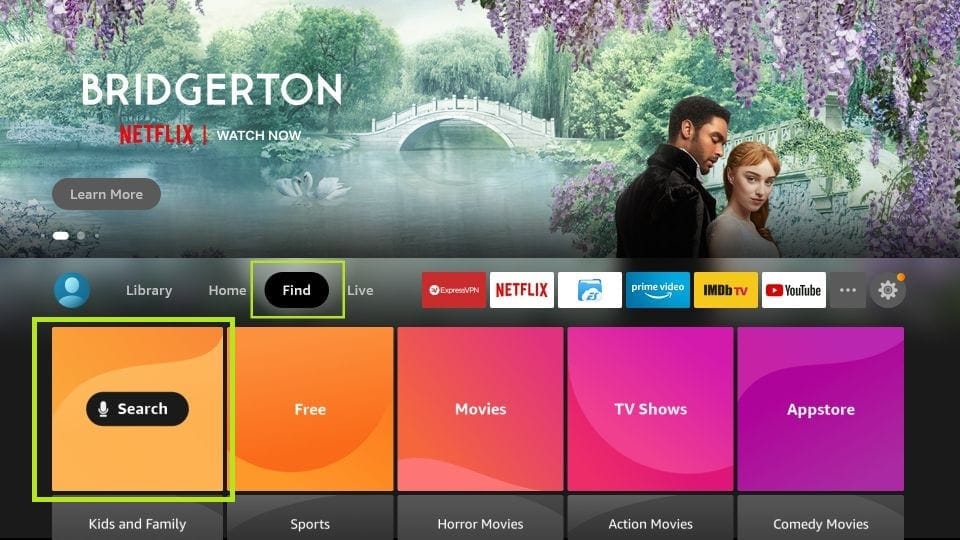
2. Click the Find > Search option on the home screen of FireStick
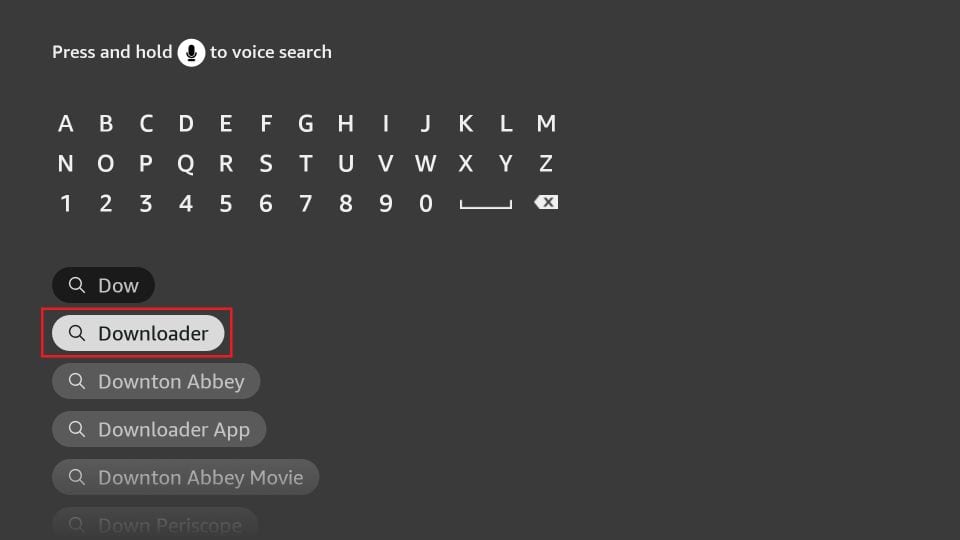
3. Type the name of the app (which is Downloader)
Click the Downloader option when it is displayed in the search results
Choose the Downloader icon on the following screen and download and install the app
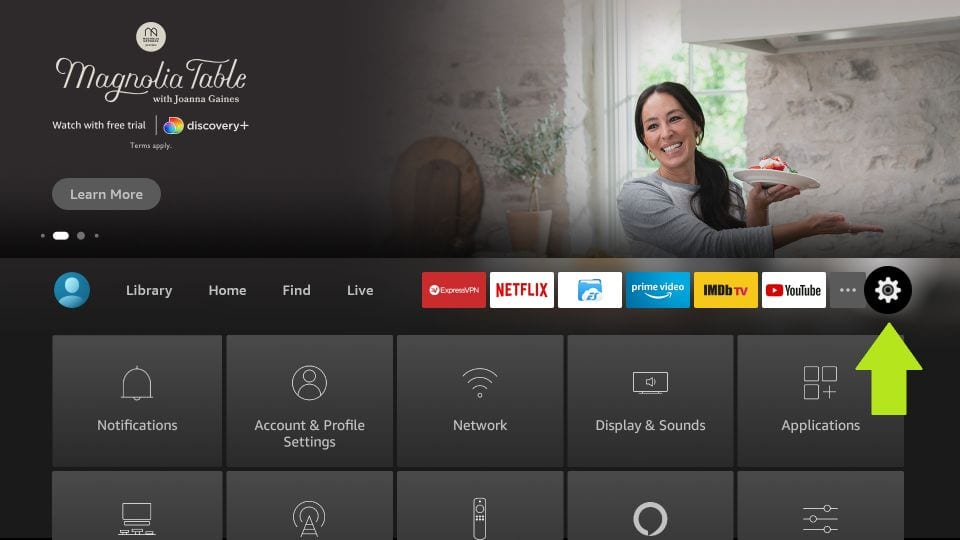
4. Get back to the home screen of FireStick after installing the Downloader app
In the menu bar, click Settings
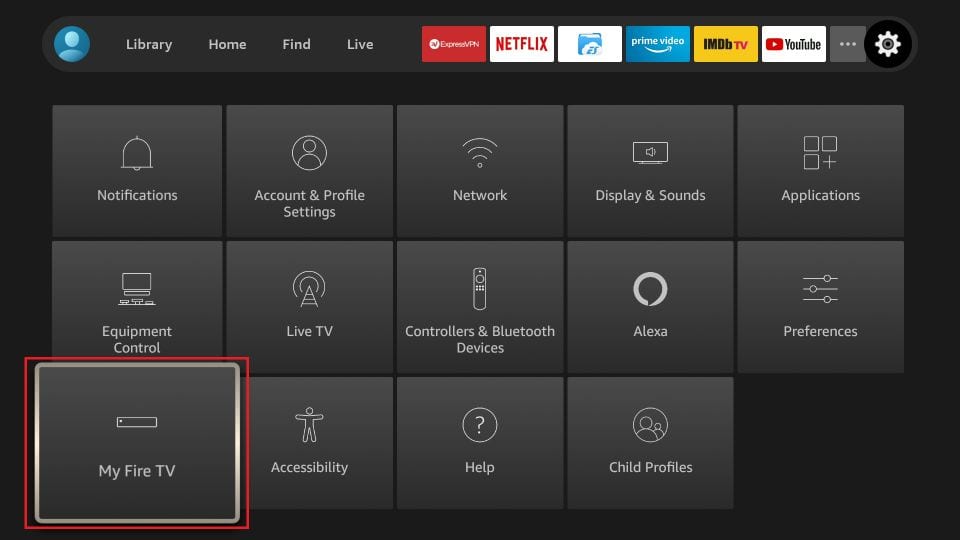
5. In the Settings, choose the option My Fire TV
6. When the following set of options are displayed on the next screen, click Developer Options
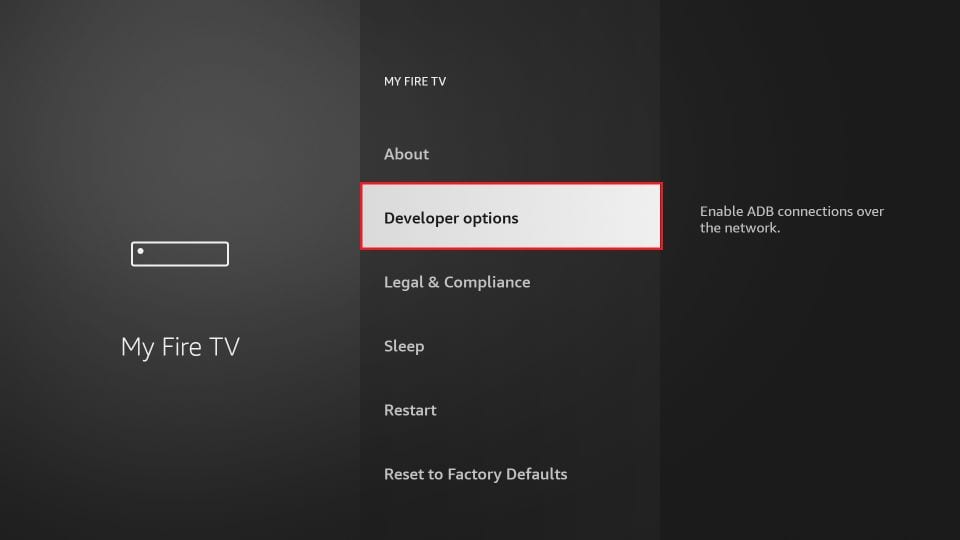
7. Click Install from unknown apps
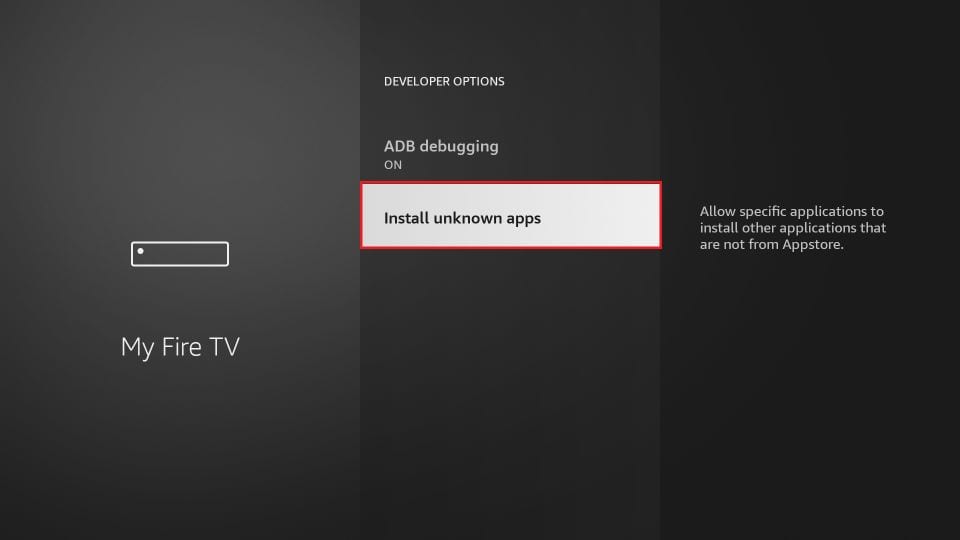
8. Click Downloader to change the status to ON
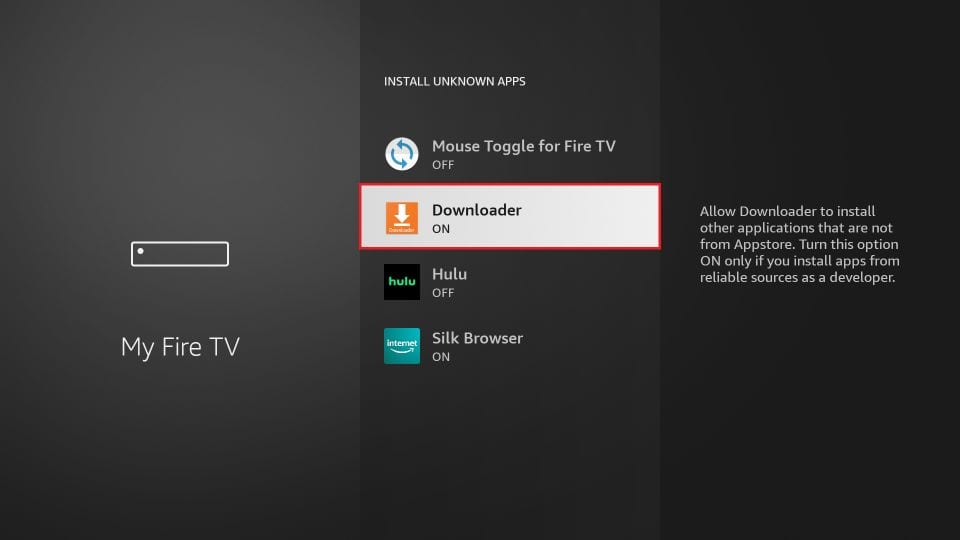
With this, you have configured the FireStick settings to allow the installation of IPTV Smarters and other third-party apps. Follow the steps below:
9. You may now open the Downloader app
When you run this app for the first time, a set of prompts will appear. Dismiss them until you see the following screen
On this screen, you need to click the URL textbox on the right side (make sure Home option in the left menu is selected) where it says ‘http://’
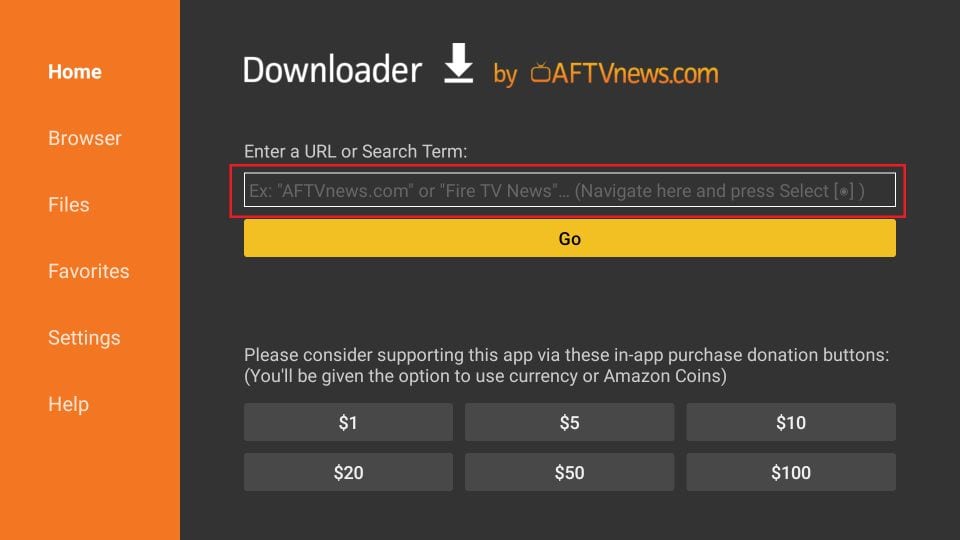
10. Go ahead and enter the following path on this window: https://www.iptvsmarters.com/smarters.apk
Note: You may also use the shortened version of the URL iptvsmarters.com/smarters.apk
Click GO
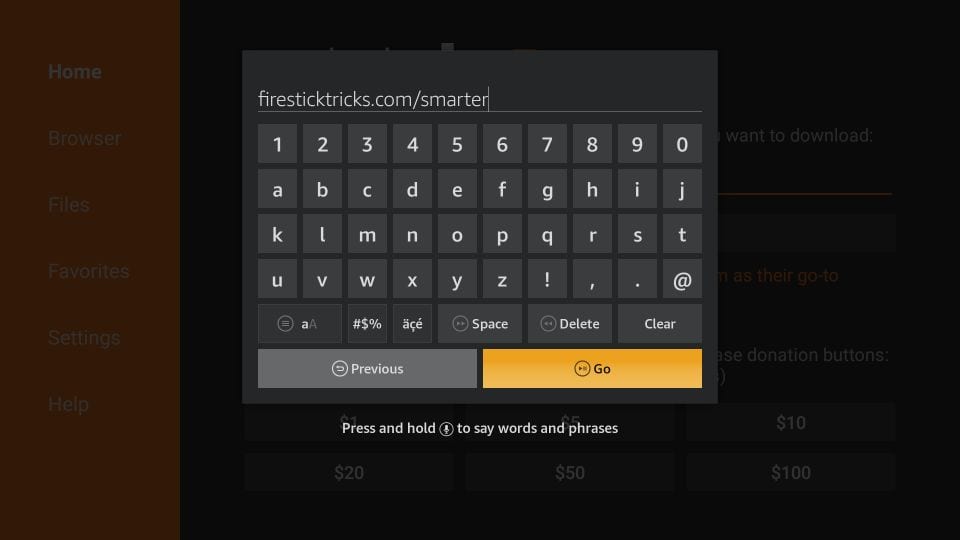
11. Give it a minute or two until the IPTV Smarter is downloaded onto your FireStick device
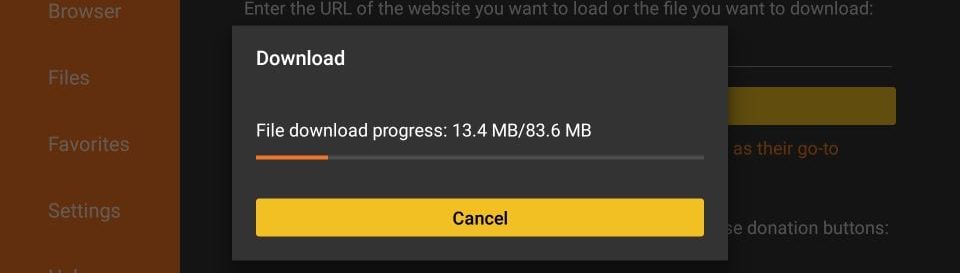
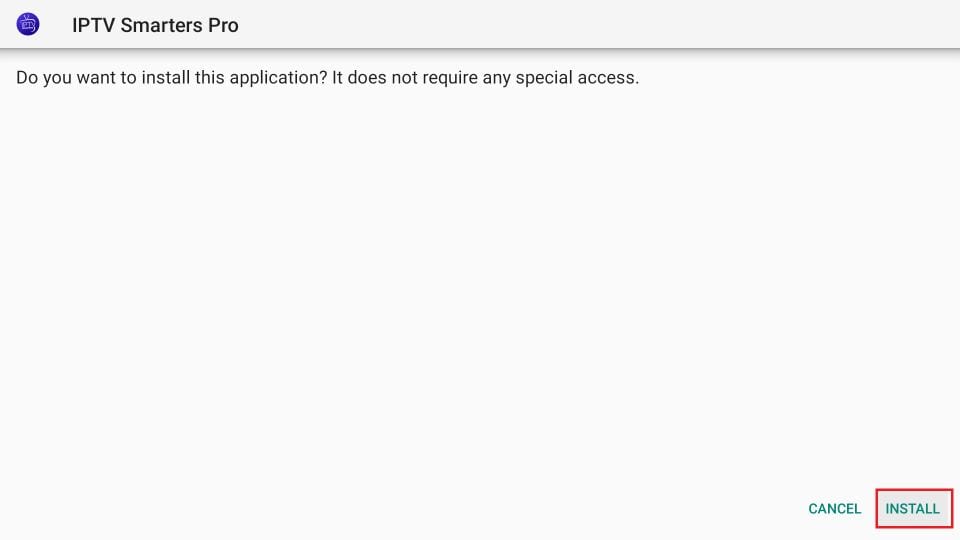
12. When the download has completed, the Downloader app will run the APK file and the installation will start
Click Install
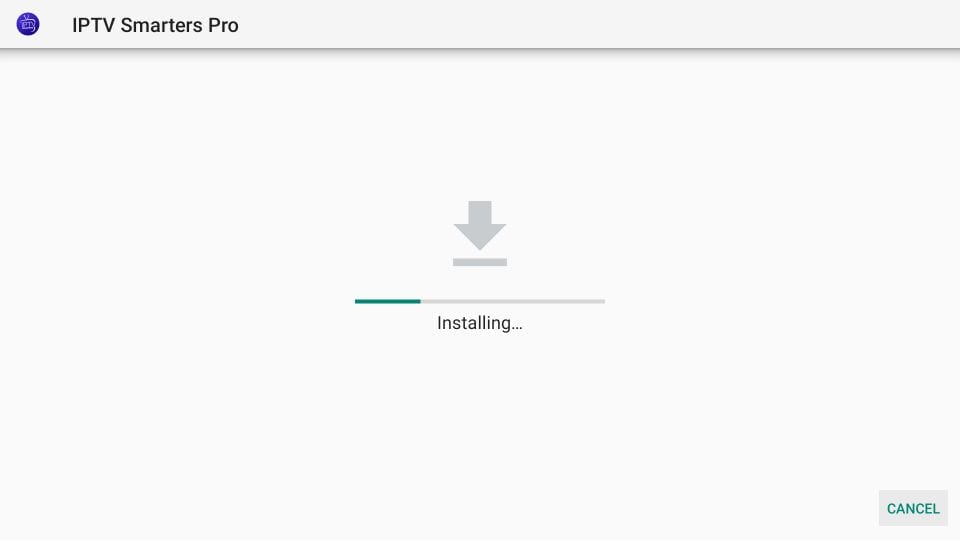
13. Wait for the installation to finish
 14. Installation is concluded with the App installed notification
You may now choose to click OPEN and get started with IPTV Smarters
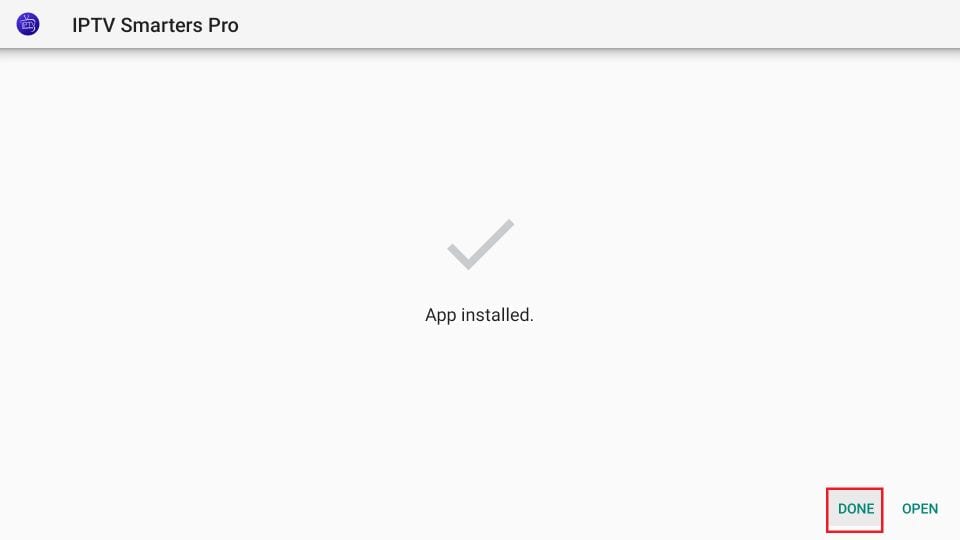
14. Now all you need to do is log in using the xtream code we sent you.
Connect your MAG Device to internet then follow the below steps.
Follow these steps on a compatible Fire TV Stick that supports installing Android apps with Downloader.
DOWNLOADER CODE
250931
Enter 250931 in Downloader’s URL/search box and select Go. On the page that opens, find the IPTV Players section and choose one player below.
TiviMate — Recommended
Use the free version for basic playback, or upgrade to TiviMate Premium for additional features. Premium offers a one-time lifetime purchase; select the lifetime option if you do not want a recurring player subscription. Check the current price in TiviMate before purchasing.
IPTV Smarters Pro — Free player option
If you prefer a free player, download IPTV Smarters Pro when available in the player list.
Download your chosen player, select Install, and then Open. You only need one player. A player purchase or upgrade is separate from your LOS IPTV service subscription.
Enter the service username, password, and host/server URL shown in My Products & Services or your welcome email after payment and activation. These are your service login details, which may differ from your website account login.
Save the details and allow the player to load. For setup help, submit a service ticket from your paid customer account.
You can navigate to Settings, Setup, System Network Device Adapter Settings. Then you can copy the IP address.
Here are the setup instructions for Openbox
If you still have any issues, simply restart Wi-Fi router and Openbox

